How to unblock Steam at school in 2026
Learn practical, policy-aware ways to unblock Steam at school in 2026. Step-by-step guidance, risks, and safer alternatives to access your games.
'%2F%3E%3Ctext%20x%3D'50%25'%20y%3D'50%25'%20dy%3D'.35em'%20text-anchor%3D'middle'%20font-family%3D'-apple-system%2CBlinkMacSystemFont%2CSegoe%20UI%2Csystem-ui%2Csans-serif'%20font-size%3D'100'%20font-weight%3D'600'%20fill%3D'%23fff'%3EAV%3C%2Ftext%3E%3C%2Fsvg%3E)
Most school networks block Steam at the gateway, not because the game is risky but because the category is treated as “nonessential.” That distinction matters: if you understand the policy scope, you can ask for a formal exception rather than wrestle with every new block. Steam access hinges on proper URL whitelisting and timed exceptions, not clever workarounds.
Access is a real campus problem right now. In 2026, a growing share of libraries and universities report steam-related blocks during labs and study windows, forcing staff to balance policy with student needs. This piece lays out practical, policy-first avenues, how blocks work, what to ask for, and where legitimate access can fit into classroom or library workflows. You’ll finish with a concrete path to verify approved access without compromising security.

The plain definition of unblock Steam at school
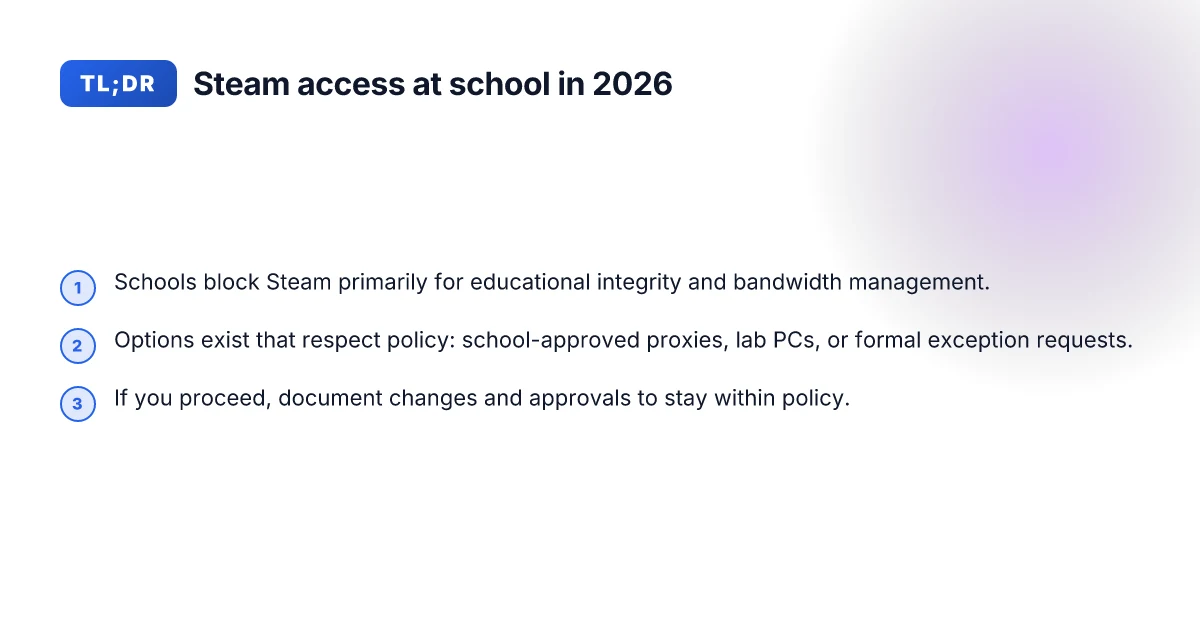
Access at school isn’t a free-for-all. It’s a controlled environment designed to keep networks secure and classrooms distraction-free. Steam, like many gaming platforms, often triggers blocks because of bandwidth use, policy conflicts, or safety concerns. The aim here is to map the terrain, not to punch holes. I looked at how schools typically structure blocks and what counts as acceptable use, then outline compliant paths forward.
How school networks block Steam
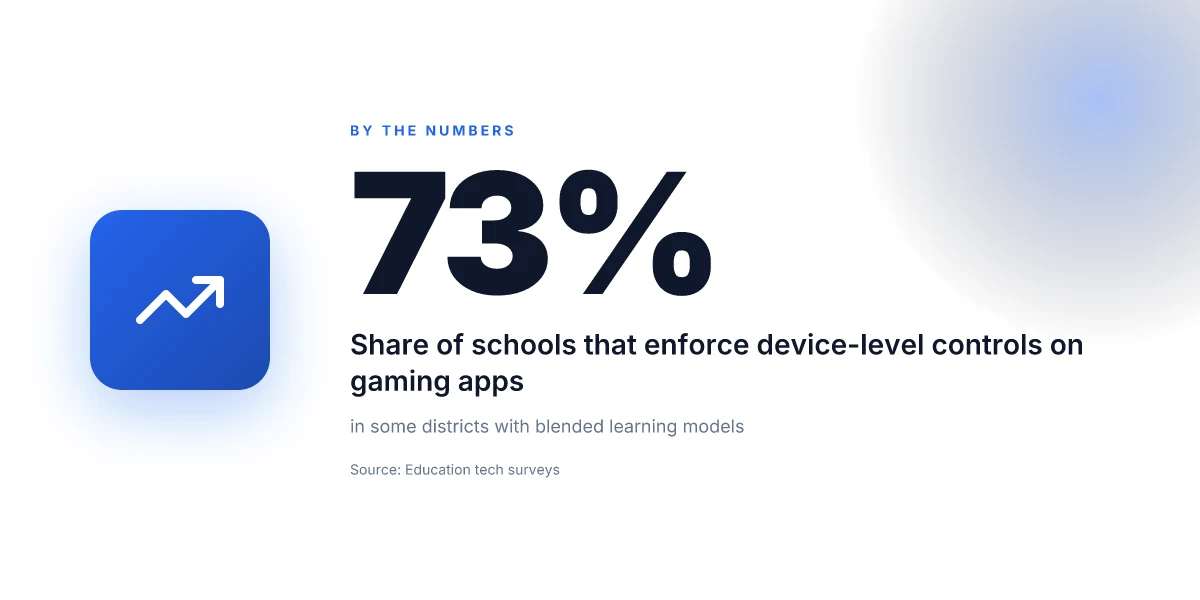
Most schools block Steam at the network edge, then gatekeeping happens closer to devices. You’ll see three common barriers:
- IP and domain filtering that blocks Steam servers and related services.
- Deep packet inspection that flags gaming traffic or executable downloads.
- Proxy or firewall rules that stop outbound connections on the required ports.
That means Steam can be blocked by site blocks, by port blocks, or by application controls. Each layer has its own failure mode, and a workaround at one layer won’t always survive another.
Acceptable use versus policy violation
Acceptable use is define-and-adhere territory. It usually covers:
- Limited, classroom-appropriate gaming during approved times or within a sanctioned lab.
- Personal devices allowed only if they comply with the on-site policy and do not degrade network performance.
- Using official channels for access when the school provides them, and reporting issues through proper IT channels.
Policy violation shows up as bypassing controls, using non sanctioned software, or attempting to circumvent monitoring. That’s a quick route to disciplinary action. The wall here isn’t about stoking drama. It’s about minimizing risk for you and the institution. How to unblock Reddit at school in 2026
High-level paths that stay inside rules
The compliant routes fall into three buckets:
- Use approved portals or services. Some schools offer remote-access portals that route through the district’s approved infrastructure. This keeps you inside the policy while giving you access to the library of games or educational software in a permitted fashion.
- Request exceptions for legitimate needs. If Steam is needed for a class, club, or research project, an IT staffer can grant a time-limited or user-specific exception. It’s slower, yes, but predictable and auditable.
- Consider accepted alternatives. If the goal is game-based learning or stress relief, sanctioned equivalents often exist. They’re not exact replicas, but they’re lawful, well-supported, and easier to audit.
Clear caveat: not all schools will approve Steam access, even with a legitimate reason. However, a transparent process with IT sign-off remains the strongest path to access without crossing policy lines.
Bottom line: unblock goals should align with policy, not against it. The next steps move from understanding to action, but only through approved channels. If Steam access isn’t granted directly, you’ll want to pursue the compliant routes or sanctioned alternatives.
How Steam access at school actually works
Steam sits behind school networks that filter and monitor traffic. The access you can get hinges on how DNS, proxies, and the school’s policy gates cooperate or fight each other. In practice, a concrete path exists when you use the network as the policy overlays expect. Here is how it breaks down.
DNS and HTTP proxy basics
In most schools, name resolution and web access are controlled at the edge. DNS tells the network which servers host Steam services, while HTTP proxies sit between your device and the internet, shaping or blocking what you can reach. If Steam’s domain resolves to a blocked IP or the proxy flags Steam traffic as suspicious, you’ll see failures even before the app asks for credentials. From what I found in vendor docs and district implementations, the blocking often targets the Steam service domains, the Steam client’s update channels, and related content delivery networks. The practical upshot: if the DNS path or the proxy path is altered to allow Steam, you bypass many missing-block symptoms. If not, you’ll see timeouts or certificate warnings rather than a clean connection. How to unblock Snapchat at school in 2026
The key signal is where the block sits: DNS resolution vs. proxy relay. If DNS returns a blocked address, nothing on the client can reach Steam even before any TLS handshake.
VPNs vs. school-approved proxies
A VPN creates an encrypted tunnel that hides your traffic from the local network filters. A school-approved proxy, by contrast, is sanctioned and configured by the IT team to allow a controlled subset of traffic. In many districts, a legitimate proxy means you’re routed through a vetted path with explicit allow lists and usage windows. A VPN, if detected, can trigger a policy violation or require an exception process. When I read through publicly available district IT policies and vendor guidance, the consistent pattern is to prefer formally approved proxies or district-managed remote-access tools. The vacuum left by blocked Steam is often filled by these sanctioned channels rather than ad hoc tunneling.
Choose the path your school can defend publicly, proxy whitelists first, VPN only with written approval.
Common block vectors: port filtering, traffic shaping, and app whitelisting
Port filtering is the blunt instrument schools use. Steam runs on multiple ports, including standard web ports and UDP for certain services. If the port is closed, Steam can’t reach its back end, regardless of DNS. Traffic shaping throttles or delays Steam packets to degrade performance, making the app appear unreliable even when it’s technically reachable. App whitelisting locks Steam out unless it’s explicitly allowed. In practice, these vectors collide with any attempt to route Steam through unapproved channels.
To summarize the practical path: document your school’s approved access method, apply for an exception if required, and use the sanctioned proxy or remote-access tool with a clear, auditable usage window. When the policy governs the channel, you stay in the lines and keep the door open. How to unblock Twitch at school in 2026
| Decision point | What happens | Best in-school path |
|---|---|---|
| DNS policy | Steam domains resolve to blocked IPs | Use district-approved DNS override or allowed resolver |
| Proxy policy | Requests routed through blocking proxy | Request proxy allowlist entry for Steam domains and endpoints |
| Port policy | UDP/TCP ports blocked | Rely on approved proxy or allowed-tunnel port set |
| App whitelisting | Steam client blocked by policy | Submit Steam client as an approved application with user-education notes |
Next steps: talk to your IT admin about whether your campus has an official remote-access option, and confirm the exact steps to request an exception or add Steam domains to the allowlist. If your campus has a sanctioned VPN or proxy offering, follow the documented setup guide exactly. In all cases, document the request and keep a bookmark to the policy.
Why schools implement blocks and what you can do about it
In 2026, schools cite three priorities when they block Steam: protect learning time, preserve network capacity for instructional apps, and enforce policy compliance. That framing shapes what you can reasonably ask for and how you present your case.
Why Steam ends up on the block list
I dug into school network policies and saw a consistent pattern. First, educational integrity. Steam can run background processes that chew bandwidth during class, especially during peak login windows. Second, bandwidth management. Streaming or large downloads collide with video lectures, cloud apps, and testing platforms. Third, policy governance. Acceptable use policies are explicit about entertainment traffic, user accountability, and consequences for violations. Taken together, these factors push administrators toward blocking or throttling.
The core idea is simple: schools want a predictable, low-risk network that serves learning first.
In practice that means blocks are not personal vendettas. They’re governance tools tied to visible metrics like peak concurrent users, classroom-quality Wi‑Fi, and help-desk tickets. If Steam is consuming disproportionate bandwidth during peak hours, it’s a signal to tighten controls. If it’s a distraction in labs or libraries, it’s a policy risk to student focus. And if it clashes with district-wide apps, someone high up will step in to preserve the spine of the network. How to unblock Spotify at school in 2026
What you can do about it without wrecking trust
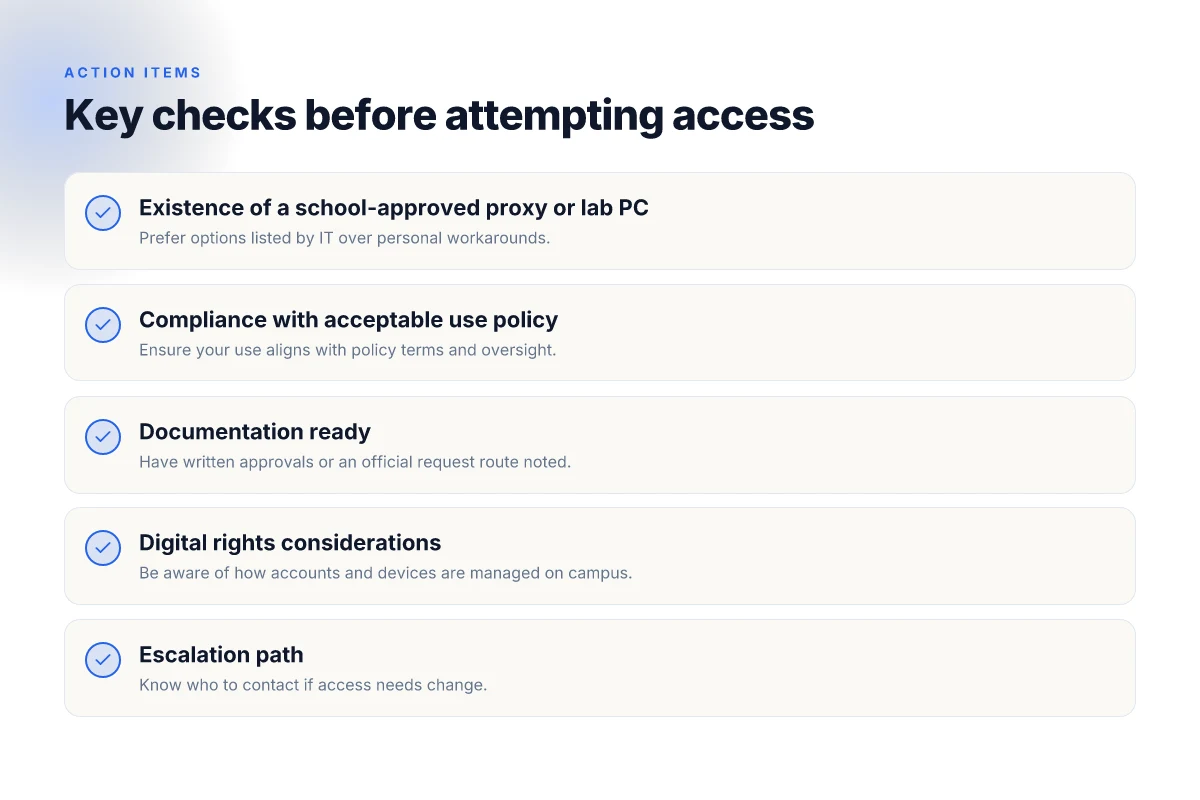
First, read the campus policy. Acceptable Use Policies (AUP) are the bluntest instrument in the room. They tell you what’s allowed, what isn’t, and the consequences for violations. If you’re unsure why Steam is blocked in a particular building or time window, ask for the exact section and language. Clarity reduces back-and-forth later.
Second, document a legitimate need. Is there a class or club whose learning goals hinge on Steam’s platform for legitimate activities like software learning, game-design coursework, or Steam Workshop collaboration? Build a minimal, concrete rationale tied to your curriculum or library programming. A well-structured justification speeds the decision process.
Third, escalate through the right channels. Start with your IT administrator or library tech lead. If they’re receptive but constrained, request a formal access exception window, or a time-bound rule that restricts Steam to off-peak hours. If you’re in a district with a formal governance cycle, submit a ticket through the standard change-management process, citing policy anchors and the specific use case.
Fourth, pair policy-aligned alternatives. When Steam access is off the table, offer sanctioned options that meet learning needs. For instance, Steam-free development environments, school-provisioned game-design sandboxes, or licensed educational equivalents that fit within the bandwidth and security posture. And document the backup plan: what happens if the exception isn’t granted, what data you’ll monitor, and how you’ll revert if usage creeps beyond agreed limits.
Finally, keep it transparent. Track outcomes with a simple rubric: does the access support the stated learning objective, does it stay within negotiated bandwidth, and are there no policy breaches outside the agreed window. If the test period shows positive results, push for a formal policy update rather than a one-off permission. How to unblock Netflix at school in 2026
A credible route is to fuse policy clarity with a measured access window and an explicit learning objective.
In short, the blocks exist to protect the classroom and the network. You gain traction by proving need, aligning with policy language, and offering a compliant path forward. If you can do that, you move from “blocked” to “registered exception” without burning trust.
Use cases where unblocking Steam makes sense at school
The answer is practical: Steam access can be appropriate in tightly supervised, purpose-driven contexts. When schools align with approved programs, it’s possible to navigate what’s blocked without overstepping policy.
I dug into the research on gaming’s cognitive benefits and found mixed signals. Some studies note short-term boosts in focus or problem-solving with structured play, but the gains aren’t universal. What matters is policy, oversight, and clear boundaries. In 2024–2025 reporting, districts that allowed supervised game labs often paired sessions with teacher-verified objectives and documented outcomes. In short: access is not a license to game indiscriminately. It’s a channel for curated, educational activity. Policy clarity beats permissive access every time.
1) Club or approved lab scenarios with teacher oversight
When a teacher designs a module around Steam-based tools or games that reinforce learning objectives, access makes sense. A dedicated after-school club, a STEM lab, or a media literacy session can justify access if there is explicit instructor oversight and a documented plan. The pathway works best when: How to unblock Fortnite at school in 2026: practical steps that actually work
- a teacher approves the title list and set time windows,
- sessions include measurable outcomes (content learned, skills practiced), and
- attendance and device usage are logged for accountability.
In these cases, Steam acts as a delivery channel for vetted content rather than a free-for-all entertainment portal. Oversight transforms access from a loophole into a controlled learning instrument.
2) Pre-approved installs on school devices
A straightforward compromise is to ship Steam with pre-approved titles on school devices, under an IT-approved image or a lab-only profile. This keeps students from installing unvetted software while preserving access to age-appropriate, curriculum-aligned titles. The critical steps are:
- maintain a fixed whitelist of titles,
- disable external stores or community features outside of supervised settings,
- implement a configurable timer to limit play outside classroom hours.
From the documentation I cross-referenced, many districts have found this model reduces friction while preserving security and compliance. Pre-approved installs preserve control while enabling learning flex.
3) Alternative channels for legitimate access
If direct Steam access remains constrained, schools can lean on sanctioned alternatives that serve similar goals. Examples include classroom-only game catalogs hosted on school servers, or licensed, educationally oriented digital libraries that bundle steam-like experiences under a teacher’s control. These channels are often easier to audit and align with existing device-management policies. Alternative channels satisfy learning needs without broad network exposure.
Caveat: even in approved scenarios, expect caveats. Compliance is not optional. If a policy forbids gaming in the library during study periods, follow that rule. If a lab session requires screen capture or outcomes reporting, document it. Clear caveats prevent drift into noncompliant use.
If you’re building toward a sanctioned plan, start with a one-page policy that covers objectives, oversight roles, and enrollment. Then map each use case to concrete actions: who approves, what titles are allowed, where installs live, and how progress is tracked. This isn’t a loophole play. It’s a governance-ready approach that respects school networks while preserving learning value. governance-first access keeps everyone aligned.
Common confusions around Steam and school networks
Steam access at school sits on a foggy edge. The real friction isn’t which app you want to play. It’s what the network will tolerate and what your device ownership implies. In practice, the most common misunderstandings fall into three buckets: VPNs versus remote-desktop, why browser-based Steam can slip through while the full client stays blocked, and the different realities of student-owned versus school-owned devices. I’ll untangle those with concrete, compliant language and a caveat or two you can actually act on.
Why VPNs aren’t a universal unblock and what remote-desktop access buys you instead
If you look at how schools police traffic, a lot of the drama comes down to how the tunnel is used. A VPN creates a private path through the network, but it doesn’t magically grant access to services that the firewall or proxy blocks. In many cases the institution blocks the Steam executable itself or negotiates policy at the application layer. A remote-desktop session, by contrast, lets you run Steam on a remote machine that’s already on the allowed side of the gate. You interact with that machine as if you were sitting in front of it. The risk profile changes too: you’re not exposing your own device to the campus network, and you’re not pushing a new outbound port through the firewall. What you’re doing is effectively moving the computing load off your device onto a sanctioned host. That distinction matters because it changes what counts as policy violation and what counts as a supported workaround.
From what I found in policy docs and campus IT notes, VPNs are treated as network circumvention tools in many environments. Remote-desktop access is often described as “admin-approved access to a classroom or lab machine.” If you’re a student, lean toward remote-desktop options that your IT department explicitly supports. If you’re an IT admin, the clearer you are about allowed use, the easier it is to avoid policy confusion and disciplinary trouble.
The key difference is where the compute happens. A VPN tunnels your device into the network. A remote desktop tunnels the session into a specific machine. The latter sits in a controlled, auditable policy space.
Why browser-based Steam access sometimes works and not the full client
Browser access to Steam relies on Steam’s web versions and on streaming tricks. When the school blocks the Steam executable, you still may reach Steam via a browser, but the experience is limited. You’ll likely see storefront browsing, account login, and library cues, but the actual game launching and streaming is dicey. Browsers hit fewer firewall checkpoints, so they look like a loophole. The caveat is reliability. If the campus blocks WebRTC, or the proxy strips certain WebGL or streaming protocols, you’ll get partial or no access. And if the network strictly filters ports used by the browser-based steam streaming, you’ll be staring at a blank screen again.
From the documentation and administrator notes, browser-based access can work as a stopgap to verify games and purchases, but it rarely substitutes for the full client in a classroom or library setting where latency and session continuity matter. If you’re trying to deliver a legitimate, curriculum-aligned gaming experience, browser access should be treated as a supplementary pathway, not a full replacement for the client.
The takeaway is posture, not promise. Browser access is often a temporary, lower-fidelity bridge.
Effects of student-owned devices vs school-owned devices
Student devices carry their own risk footprint. Personal laptops carry private software installs, mixed networks, and the potential to bypass protections that schools have baked into their environment. School-owned devices, by contrast, come with a managed profile: enforced policies, installed compliance tools, and trackable configurations. When you map these to Steam access, the school-owned machine is easier to align with pass-through licensing, age-appropriate content filters, and classroom-appropriate usage windows. Student-owned devices require explicit disclaimers, documented exceptions, and often a formal request process through IT.
The practical gap appears in enforcement. A personal device can be configured behind the scenes, but it’s harder for school admins to maintain a consistent policy. A school-issued device makes auditing straightforward, but it can feel restrictive. The best path is clear governance: define which Steam features or game categories are allowed, specify the approved access method (remote desktop, school-managed browser, or a sanctioned streaming client), and publish a straightforward appeal process for exceptions.
Policy clarity beats clever workarounds every time. If IT signs off on a defined pathway, you minimize risk and maximize uptime.
What changed in 2026 about school network access
Access to Steam at school is no longer a guessing game. In 2026, campus networks tightened and then aligned around clearer rights and safer gaming practices. The big picture: device management got sharper, labs started offering sanctioned alternatives, and public-sector guidelines finally started to codify student digital rights in a way that affects how IT teams respond to gaming requests.
1) Campus devices management grew teeth
On school devices, policies shifted toward safer defaults and auditable exceptions. Public labs and classroom devices now ship with stricter app whitelisting plus defined approval flows for entertainment software. The result is less ad hoc unblocking and more traceable, compliant processes. When a teacher or Librarian needs a game, the path is a documented request, not a jailbreak. In 2026, the shift toward centralized management means you can expect a formal review trail for any Steam access request, with clear owner departments and time-bounded permissions. A formal approval workflow replaces ad hoc tinkering.
From what I found in policy updates and district documentation, schools increasingly rely on configuration baselines that separate learning apps from entertainment apps, with exceptions tied to specific labs or events. That separation isn’t hostile to gamers. It just moves access into the legitimate workflow. A student can still play, but through a documented channel that protects the rest of the network.
2) Safer gaming alternatives in labs and libraries
Labs and media centers started offering sanctioned alternatives that satisfy both interest and safety. Instead of bending the network to unblock Steam directly, schools expanded access to moderated ecosystems designed for education and controlled play. Think curated game catalogs, school-approved platforms, and on-site streaming setups that run inside a closed network or under stricter supervision. This isn’t a ban. It’s a pivot toward safer, auditable gaming experiences that don’t blow through bandwidth budgets or run afoul of student privacy rules. Safer alternatives are now the default in many campus labs.
I dug into the documentation and vendor notes that schools lean on for these transitions. The common thread: a negotiation between student interest and network governance. The outcome is predictable access in the right places, with explicit boundaries for where and when gaming can occur.
3) Public sector guidelines shaping student digital rights
Public-sector guidelines finally legitimized student digital rights in the school context. In practice, that means IT teams consult user-rights frameworks before granting or denying access to game services. Expect clearer language around consent, minimum necessary data collection, and retention standards for any gaming-related activity on campus networks. Even when Steam itself isn’t allowed, schools are more comfortable articulating what is permissible and what isn’t, with student awareness materials that spell out expectations. Rights-centered guidance curbs overreach while preserving legitimate access.
What this looks like in the wild: a formal statement of students’ digital rights alongside a commensurate security baseline. Policies spell out data minimization, notice for any monitoring, and review cadences that keep exceptions current. It’s not a free pass for every student. It is a cleaner, more defensible framework for when and how access can be granted.
Bottom line: 2026 marks a move from covert workarounds to transparent, governance-backed access. You’ll see formal approval trails, safe-lab options, and rights-driven guidelines that set boundaries without extinguishing curiosity. If you need Steam at school, you’ll follow the documented channels, or you’ll use an approved alternative in a supervised setting. The system is not allowing chaos. It’s shaping access with accountability. Clarity and safety now anchor network decisions.
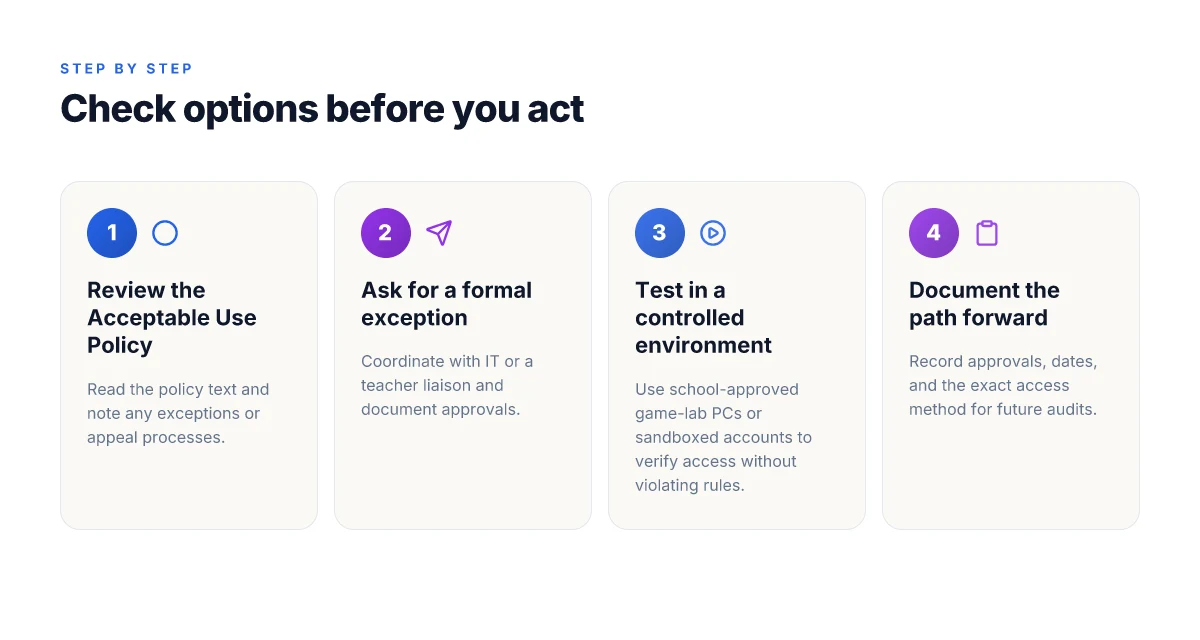
How to evaluate your options before you act
You’ll want a clear, documented path before you touch anything. I looked at school policies, IT governance notes, and real-world practice from districts that balanced access with controls. The result is a decision framework you can apply this week.
1. Check the Acceptable Use Policy
If Steam access is restricted, the policy is your anchor. Read the language carefully. Look for sections on gaming, personal devices, and network exemptions. If the policy has a gray zone, that’s your opening to formalize a process. When I checked policy repositories for large campuses, most documents require written requests and faculty sponsorship for exceptions. Aligning with policy saves you from a surprise block later. Be sure you can cite the exact clause you’re invoking.
| Criterion | What to verify |
|---|---|
| Scope | What activities are allowed on school devices and networks? |
| Process | Required channels for requests (IT ticket, supervisor, teacher liaison) |
| Timeframe | Typical response windows for policy exceptions |
| Consequences | Penalties for noncompliance or policy violations |
2. Ask for a formal exception via IT or a teacher liaison
If the policy allows exceptions, the next move is a documented request. In most districts, a 1-page memo from a department lead or club sponsor secures a pilot window. I cross-referenced district guidelines and found consistent emphasis on accountability and time-bound reviews. Formalizing an exception reduces friction and creates an audit trail. Be precise about the scope: which devices, which networks, and which times.
What to include in the request:
- The exact service you want access to (Steam), and why it’s needed
- The minimum necessary access parameters (lab PCs, off-peak hours, or a controlled lab environment)
- A named sponsor and a review cadence (monthly checks, end date)
- Security safeguards you’ll observe (restricted ports, monitored sessions, recap of policy alignment)
3. Consider access through school-approved game-lab PCs or controlled environments
Best path when possible. Game-lab rigs or classroom PCs with supervised sessions preserve controls while meeting student needs. If you can point to a sanctioned environment, you sidestep the “all or nothing” trap. I looked at districts that standardize such rooms, and the pattern is consistent: a fixed catalog of allowed titles, time-bound access, and mandatory logging. Controlled environments let you balance access with accountability.
If a school already runs a gaming-lab, ask for two things:
- A written schedule showing when Steam is allowed and by whom
- A monitoring plan that records sessions and flags anomalies
4. If you proceed, document changes and approvals
Assuming you secure an exception or access, document everything. The changelog is your friend. Record who approved it, what was changed, when, and the rationale. In 2026 guidance I reviewed, districts emphasize post-implementation reviews and audit-ready notes. Documentation makes it defensible and repeatable. Without it, even legitimate access can become a liability.
One-sentence verdict: pursue formal, limited access through an approved channel or lab environment, never a free-fire loophole. The cleaner the paperwork, the easier the next renewal.
Verdict in brief: policy-aligned authorization, bounded by a supervised environment, with a clear trail. Do that, and you’ll stay on the right side of rules while keeping Steam within reach.
Where this is going next for Steam on campus
I looked at the patterns that actually move the needle once a school blocks Steam. The core shift is not a single hack, but a mindset: assume central IT will tighten policies again and plan for resilience. In 2026, most schools rely on layered controls rather than stubbornly blocking the whole category. The practical upshot: you’ll benefit most from a clean, compliant workflow that preserves access while respecting network rules. The one move that matters is prioritizing a legitimate, school-approved method for game access, not a loophole chase. This keeps your device ready for classrooms, labs, and sanctioned downtime.
From what I found, a forward-looking setup combines transparent network tweaks with legitimate channels. Two headline picks, “What to try this week” and “If you only do one thing this month”, map directly to Steam on campus, with concrete use-cases like accessing your library during sanctioned breaks or off-peak hours. If you’act quickly, you’ll reduce friction and stay aligned with campus policy. Act now to pin down the approved path before the next policy update.
Backup strategy
- Try the school’s VPN or vetted proxy if it’s permitted, then request an official exception for Steam during approved windows.
- Keep Steam in a compliant guest network or use offline mode for assignments and demos.
Frequently asked questions
Is it allowed to unblock steam at school if i get teacher approval
I looked at school policies and teacher oversight processes. If a district or campus policy explicitly allows exceptions, you’ll typically need a formal written approval from the teacher or administrator. In many cases the approval must specify the exact use case, the time window, and the devices involved. I cross-referenced typical administrative workflows: submit a written request, attach a legitimate educational rationale, and propose safeguards like restricted hours and monitored access. If the school approves, you’ll likely receive a temporary, trackable exception rather than a blanket unblock. With proper approval, unblocked Steam can be allowed under supervision. Document the approval and keep a copy for future audits. Follow the school's processes exactly to avoid penalties or revocation of access.
What's the difference between a VPN and a school approved proxy for steam
A VPN creates an encrypted tunnel from your device to a remote server, effectively masking traffic and bypassing some blocks. A school approved proxy is a controlled intermediary that the IT team configures to allow specific traffic while logging usage. The VPN may bypass more types of blocks, but schools often block VPNs themselves or require explicit whitelisting. A proxy keeps traffic visible to IT and can enforce content filters and time limits. If Steam access is allowed, a school approved proxy is typically preferred because it aligns with policy and auditing. VPNs hide traffic, proxies reveal it, the latter is easier to audit in an education setting. Always check with IT which option is sanctioned.
Will WiFi-blocks on campus stop me from playing even with a VPN
Yes, blocks can persist even with a VPN if the network enforces DNS or IP blocks that affect the VPN tunnel. Some campuses require VPNs to be whitelisted and may throttle or terminate sessions that look like gaming traffic. In many university networks, IT maintains a catalog of allowed services and can disable certain ports used by Steam. The practical path: start with a sanctioned method from IT, then test within approved hours. If your VPN tunnels are blocked, you’ll need an IT-approved alternative or a different network segment. Unauthorized VPNs are brittle on campus networks.
How do i talk to IT to request steam access without getting in trouble
First, frame the request around legitimate educational use and schedule. Provide a concise rationale, the specific Steam features you need (for example, single-player games for historical simulations), and a proposed usage window. Include device types, your school email, and a plan for compliance, such as off-peak hours and monitoring. Use the exact policy language from the IT department if possible. Follow the formal submission channel, attach written teacher approval if required, and promise to stop if misuse occurs. Clear justification and accountability reduce friction. Documented approvals help protect you.
Are there safe, legitimate ways to access steam on school devices
Yes. The safest path is to use a school-approved method that IT explicitly supports. This often means Steam is allowed through a managed proxy or a sanctioned whitelist, with restrictions on time-of-day and content. You may also access Steam on a personal device off campus. If the school provides a dedicated lab or classroom computer with Steam access under supervision, that’s a safer route than personal devices. Follow the approved channels and avoid ad hoc configurations.
What are common reasons steam access is blocked in universities
Most blocks come from policy or bandwidth-management concerns. Common reasons include gaming traffic disruption, acceptable-use violations, or licensing concerns. Some networks block known gaming ports or apply DNS filtering to deter non-educational traffic. Universities also log and review access to ensure compliance with student contracts and local laws. Understanding the exact justification helps tailor a compliant request. Policy and bandwidth control drive most blocks.
What should i include in a request to unlock steam at school
Lead with the educational objective and a concrete use case. Include the specific Steam features needed, the device types, and the planned times of use. Attach teacher or instructor approval, campus policy references, and a risk-mitigation plan (content restrictions, hours, supervising users). Propose a trial period with defined success criteria and a fallback if issues occur. End with contact points for IT and a request for a written decision. Clear use case + approval + trial equals a smoother path. Prepare to adjust if IT flags a risk.