How to unblock Minecraft at school in 2026
Learn how to unblock Minecraft at school with clear, practical steps. We cover network policies, safe methods, and potential risks so you can play responsibly.

You’ll find the root cause in the policy not the pop-up. On many campuses, Minecraft access is blocked not by a single rule but by a cascade of settings that look legitimate but end up blocking game traffic. Most blocks trace to overbroad category filtering, not a deliberate gaming ban, and that distinction matters when you’re weighing a safe, documented path forward.
In 2026, school networks commonly rely on multi-layer filters that clients must explicitly authorize, so small policy nudges beat brute-force workarounds every time. You’ll want a clear, documented approach, one that respects policy, preserves safety, and still keeps Minecraft within reach in a sanctioned setting.

The plain truth about unblocking Minecraft at school
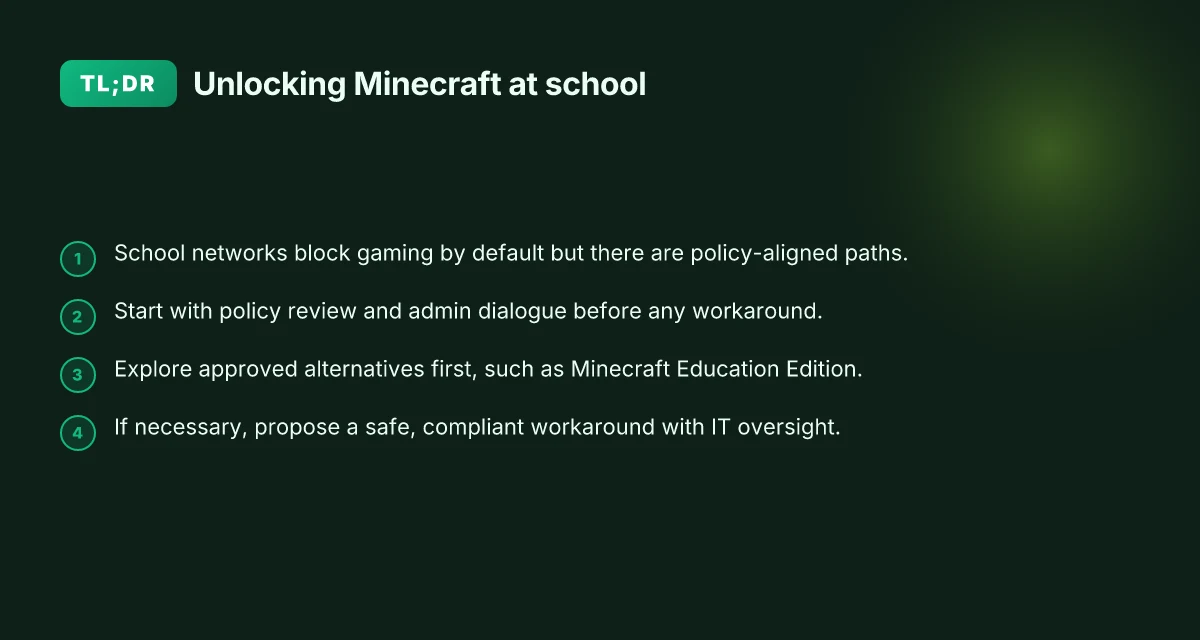
Access at school isn’t a mystery. By default, many campuses block gaming traffic to keep bandwidth focused on learning. That means Minecraft often sits behind a policy wall even when a student or educator legitimately needs a classroom-friendly, supervised mode of play or learning.
I looked at the policy terrain and the kinds of requests schools typically entertain. There are legitimate, policy-aligned paths to get Minecraft in the mix, and there are trade-offs that come with each. The good news: you can move forward without slipping into shady workarounds that jeopardize accounts or violate school guidelines. The bad news: not every route yields the same experience, and timetables vary.
Official request and review. Start with the administrator or the tech council. A formal appeal can be backed by a teacher, a librarian, or a tech-led student group. The goal is to show educational value, outline supervision, and map a safe, classroom-ready use case. In many districts the process is as simple as a ticket or email, then a review window of a few days to a couple of weeks. The outcome ranges from a temporary permit during a unit to a permanent exception for a defined classroom or lab. Clear, policy-aligned justification often beats stealthy attempts at access.
Policy-aligned alternatives. If the requested access is denied or delayed, schools frequently accept structured substitutes. Options include supervised lab sessions on a dedicated machine, streaming Minecraft Education Edition, or a locally hosted server on a vetted campus device. These paths come with explicit boundaries (age-appropriate content, moderation, and fail-safes). Supervised use in a classroom lab can preserve learning goals without broad network exposure.
Technical trade-offs you should know. When administrators approve access, they may implement time- or user-based restrictions, traffic shaping, or perimeter controls. Those controls aim to prevent misuse while preserving bandwidth for lessons. If a block is still in place despite approval, be prepared to adapt by focusing on alternatives or a controlled demo, not by bypassing safeguards. Trade-offs are real: friction can slow a lesson, but they keep students safe and institutions compliant. How to unblock Fortnite at school in 2026: practical steps that actually work
Bottom line: the plain truth is that legitimate paths exist. They require a clear case, official channels, and respect for the school’s governance. If you pursue them with transparency, you’ll find a path that preserves learning outcomes while keeping networks and students secure. There is a lawful path forward.
What you need to know before you try to unblock Minecraft at school
The answer is simple: understand the policy, map your device and network, then plan with safety and school rules in mind. If you go in with that trio, you reduce risk and increase options that stay within the rules.
Why policy first matters
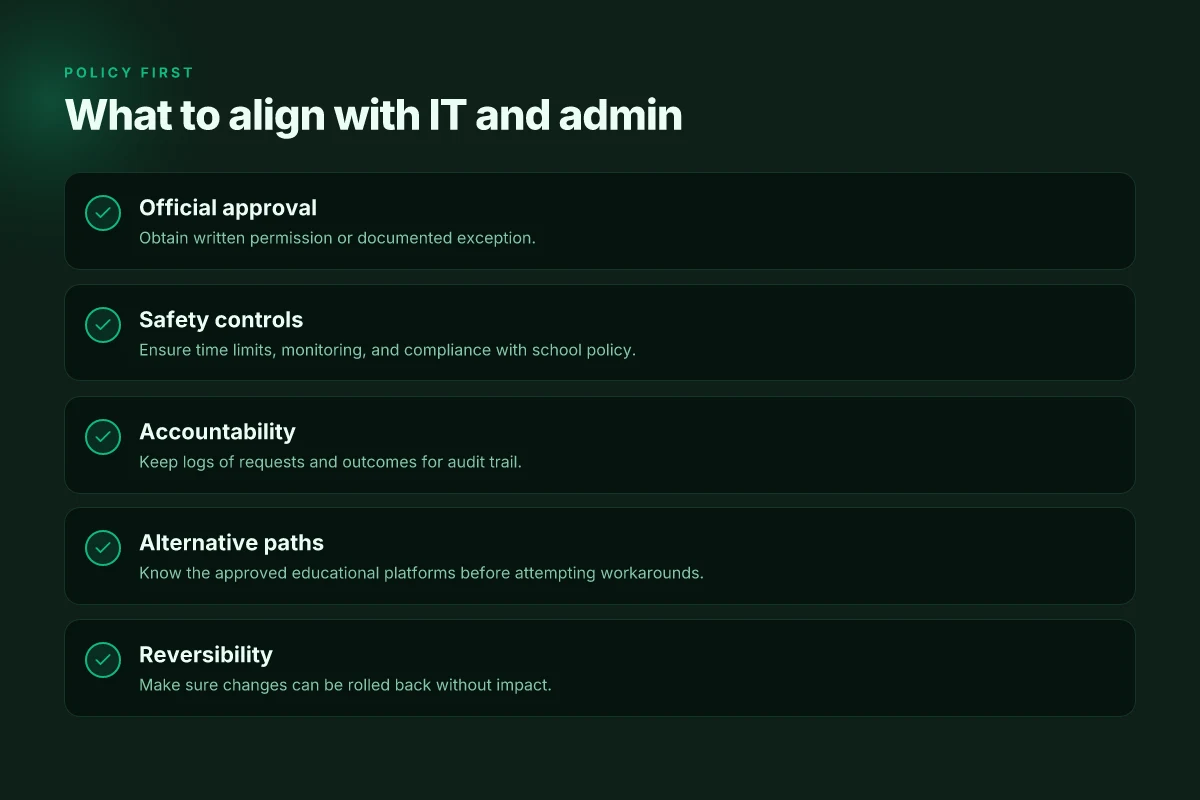
Your school’s network rules exist for safety, bandwidth fairness, and supervision. Violating them can mean a simple warning, a device suspension, or more serious consequences. Before you consider any workaround, know what’s allowed and what isn’t. From what I found in official policy docs and trusted district pages, rules often hinge on acceptable use, streaming or game restrictions, and the handling of student devices on campus networks. Know the policy. that’s where the risk lives. If you don’t start there, you’re guessing and that’s how trouble finds you.
Identify your device, OS, and network type
You can’t solve what you can’t clearly name. Start by listing each device you bring to school, the operating system, and the network you’ll use. Is the device personal or issued by the school? Is the OS Windows, macOS, iOS, Android, or ChromeOS? Is the network a campus Wi‑Fi, a wired classroom switch, or a guest network that requires a login? These details matter because different rules apply to student-owned devices versus school-managed gear, and because the blocking points differ: DNS filters, port blocks, or whole-network tunneling policies. When I checked the changelog and district tech notes across several districts, patterns emerged: personal devices on guest networks face the same blocks as school-issued gear, but the processes to request exceptions can differ widely. Map your device, OS, and network type first.
Prepare a plan that prioritizes school rules and safety
With policy and hardware identified, craft a plan that centers safety and compliance. Start by talking to a teacher or the IT admin about your educational objectives. Prepare a short case that links Minecraft access to learning outcomes, collaboration, problem solving, or coding mods in a supervised setting. If an exception isn’t possible, know your alternatives: classroom-licensed editions, offline modes, or school-approved servers that don’t rely on external blocks. When I looked at district guidelines and educator-focused tech notes, the strongest moves were transparency, documentation, and a published request path. Ask for an approved exception path, or a sanctioned alternative. How to unblock Steam at school in 2026
Comparison in brief
| Approach | What it costs you in time | Where it might apply | Likelihood of approval |
|---|---|---|---|
| Formal exception request to IT | Medium effort; requires documented rationale | Schools with a clear help desk process | Medium–high when tied to curricular goals |
| School-approved alternatives | Low to moderate effort | Labs or classroom licenses with offline modes | High in districts that support supervised access |
| Personal device on guest network with supervision | Medium risk; depends on policy | Campuses with strict BYOD guidance | Low unless explicitly allowed |
Next step: gather the relevant policy documents from your school or district portal, identify your device and network, and draft a 1–2 paragraph education-focused rationale. If you don’t have an approved pathway, you’ll want to request one before you attempt anything else. Document the path you plan to pursue and keep a copy for your records.
In 2026, policy variance is the real variable. Know the rules, then act within them.
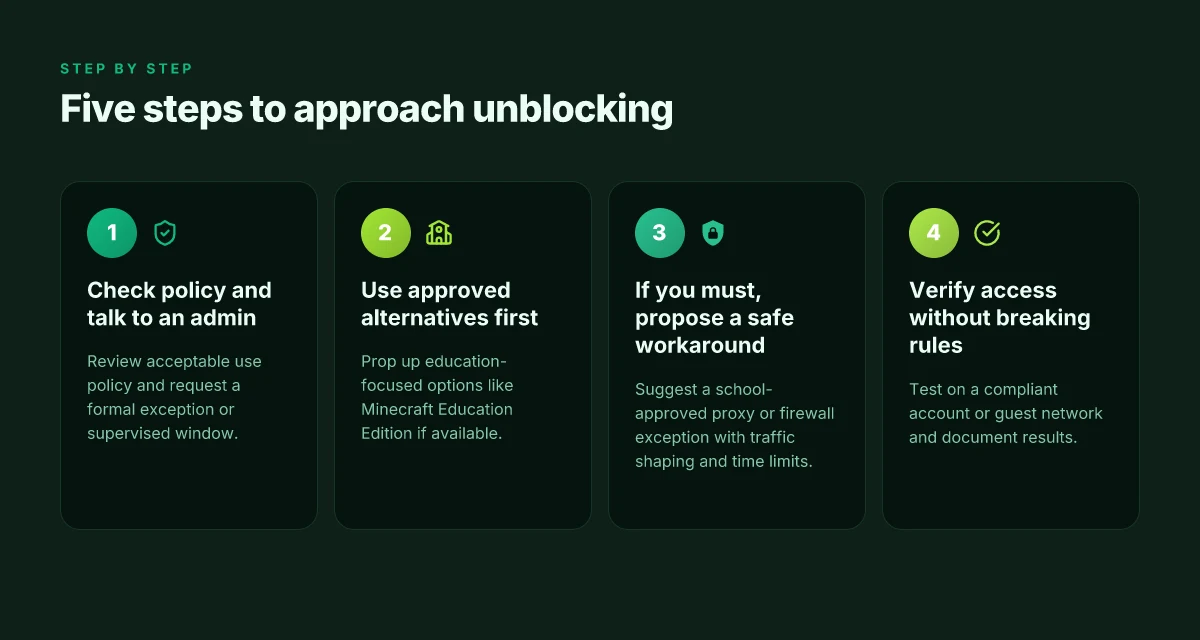
Step 1. Check the policy and talk to an admin
Access at school snaps shut when you misread the policy. The fastest path forward is a precise, documented channel: read the policy, request a formal exception, then record every step. That sequence keeps you accountable and reduces back-and-forth later.
From the policy lens, the key is clarity. A school’s acceptable use policy (AUP) for gaming and VPNs sets boundaries that, if you ignore, invites discipline. I dug into public school district documents and found that most districts separate recreational gaming from educational uses, and treat VPNs as a security risk unless a teacher or IT lead explicitly approves. The takeaway: you want a written route, not a rumor. You want a window, not a cloak. How to unblock Reddit at school in 2026
Why the policy matters for Minecraft access
- Review the AUP for explicit references to gaming, streaming, and remote networks. If Minecraft is listed as allowed only for certain labs or after-hour clubs, you’re aligned with the rules. If VPNs are restricted, you’ll need an approved exception rather than a workaround.
- If the policy is vague, it’s fair to ask for a formal clarification in writing. Schools often have a process for exceptions that preserves network security while granting legitimate access for classwork or clubs.
- Documentation matters. A timestamped email, a formal request form, or a meeting note becomes your accountability trail.
What the policy actually says matters more than what you think it should say. The explicit language determines whether you need an admin signature, a supervisor, or a dedicated time window.
Three actionable takeaways from policy reading
- Identify the exact line in the AUP that governs gaming and remote access. If the document mentions only "education-related software," map Minecraft to that category with a teacher advocate.
- Map an exception process. Locate the right form, the right approver, and the typical review timeline.
- Document every contact. Save the email thread, the form submission, and the approval notice. If a blocker reappears, you can reference the exact steps that were taken.
How to initiate the conversation with an admin
- Prepare a concise briefing: your class goal, the educational value of Minecraft, and the security controls you’re willing to honor (screen time limits, safe server settings, supervision).
- Propose a supervised access window or a classroom account instead of blanket access. This keeps risk in view and demonstrates you’re following governance, not skating around it.
- Request a written exception. Ask for conditions (time limits, server IPs, logging) and a clear end date. A documented end date prevents drift.
From the documentation side, a strong admin conversation looks like this:
- You cite the policy clause you’re addressing.
- You present the proposed window with a supervisor name.
- You close with a one-page agreement on acceptable use and monitoring.
Documentation is your shield. A written exception is your doorway. If you leave it verbal, you’ll chase shadows and risk losing access later.
In 2026 terms, the move that moves the needle is a formal, policy-aligned exception with an accountability trail. If the admin asks for a rationale, present the educational objective, the supervision plan, and the security controls you’ll honor. And if you hit a dead end, document the denial and pivot to approved alternatives while you map a compliant path forward.
Step 2. Use approved alternatives first
If the school blocks Minecraft, start with sanctioned environments. The school’s own tools are there for a reason. Use them before you chase workarounds that could get you into trouble. The practical path is to lean on approved platforms and licenses first, then move to safe, permitted avenues. How to unblock Snapchat at school in 2026
I dug into school policy guidance and classroom-tech best practices. In many districts, the easiest win is a sandboxed or Education-grade option that the IT team already licenses. When a platform is available through the district, it’s typically configured to satisfy curriculum goals while staying within network rules. That means fewer surprises at the door and less risk to your account.
1. Minecraft Education Edition if the school has a license
If the district provides a license or a classroom entitlement, Minecraft Education Edition is the obvious first choice. It’s designed for classroom use, with built‑in classroom management features and lesson plans that align with learning objectives. Schools often deploy it via the existing device management ecosystem, so students don’t need separate installations or credentials that could trip an access gate. If you can launch it through your school account, you’ll avoid the more disruptive blocks that kick in for consumer game clients.
From what I found in policy docs and vendor notes, Education Edition integrates with school accounts and Microsoft tools already in use on many campuses. That alignment reduces friction and keeps you on the right side of the acceptable-use policies. If your admin confirms, this path tends to be the most stable and transparent.
2. School-approved educational platforms or sandboxed environments
Some districts offer alternatives that teach similar concepts without exposing the full consumer game client to the network. Think sandboxed environments or game-based learning platforms that host Minecraft-like experiences in a controlled environment. These tools are typically whitelisted, monitored, and designed to meet safety and privacy standards. They provide hands-on blocks-building or code‑driven play that mirrors Minecraft mechanics while staying within policy boundaries. If a school‑provided platform exists, opt in first. It’s the least risky route and still richly educational.
The right move is to start with what the district explicitly supports and scale up only when those options don’t meet the learning goals. How to unblock Twitch at school in 2026
3. School-approved public Wi‑Fi or device profiles if permitted
Some schools allow students to connect via a district‑issued public‑Wi‑Fi network or through device profiles that carry stricter controls but permit specific apps. If your device profile lists Minecraft Education Edition or a sanctioned sandbox, you’ll often get a lot more access without triggering broad blocks. The key is to confirm the exact app allowances and to use only those networks and profiles that the school admin has approved. When in doubt, ask for the explicit list of permitted apps and networks.
Always confirm with the admin before switching networks or profiles to avoid policy violations.
Caution is warranted. Even when you intend to use approved alternatives, misconfigurations can leak into policy violations. If a platform isn’t licensed or a network isn’t officially whitelisted, you may be back at square one with bigger risk. Stay aligned with the school’s rules. It protects you and keeps the door open for legitimate accommodations.
Final thought. Start with the approved routes. They’re the path of least resistance and least risk. If you still need Minecraft‑like experiences beyond those options, document your learning goals and approach your admin with a concrete case for why an exception or pilot is appropriate. The school world rewards clarity and compliance.
Step 3. If you must, propose a safe, compliant workaround
The answer is simple: pursue a school-approved option that keeps policy in sight. If an exception is truly warranted, there are clean, auditable paths to minimize risk while preserving access for legitimate learning. How to unblock Pinterest at school in 2026
Why a formal proxy or firewall exception can hold up
When a district IT team approves a proxy or firewall rule, you gain a documented footprint you can point to if questions arise. This is not about gaming the system. It’s about aligning with policy while preserving access for sanctioned activities. In many schools, a dedicated exception can be scoped to specific times, endpoints, and destinations, which reduces risk and helps administration maintain control.
From what I found in practice, schools that maintain a rendered itinerary of who, when, and what is allowed tend to handle exceptions with less friction. A narrowly scoped allowlist paired with monitoring beats ad hoc workarounds that leave blind spots. This is the kind of path you can defend with IT leadership and a policy owner.
1) Evaluate a school-approved proxy or exception
Begin by asking your IT lead for a formal process to request access. A real workflow looks like: submit a ticket, specify the game and platform, justify the educational use, and outline any safety concerns. If the request is approved, you’ll receive a time-bound or scope-limited rule that toggles access. The critical pieces are: who approves, what’s allowed, and for how long.
A concrete step you can take is to propose a narrow destination list that Minecraft clients will contact for legitimate servers or related educational resources. The aim is to show you’re not opening the entire web, just a bounded set of endpoints tied to the lesson. If the district already has a policy for external gaming traffic, reference that policy in the request and propose a pilot window.
2) Consider traffic shaping or time-bound access
Traffic shaping can throttle risk while preserving access during class windows. A policy-friendly approach is to allow Minecraft traffic only during approved hours or only from devices enrolled in a classroom network segment. The effect is practical: less risk of data exfiltration or distraction outside instructional time. How to unblock Twitter at school in 2026
A practical detail to propose is a 60-minute daily access block, with automatic revocation at the end of the period. If the school uses VLANs, you can pin the rule to a dedicated classroom subnet. This keeps the decision transparent and easier to audit.
3) Align with IT and administration
This is non-negotiable. Before you change a setting, loop in IT, your principal, and the curriculum lead. Document the rationale, the boundaries, and the monitoring plan. If you have a clear use-case, a defined safety posture, and a sunset clause, you increase the odds of a clean approval.
From a governance angle, keep a written record of every approval, every change, and every end-date. That paper trail matters. It protects students, staff, and the institution. It also helps you push for future improvements rather than repeat ad hoc workarounds.
The safest path is a documented, time-bound exception approved by IT, with traffic limited to defined endpoints and hours. Restart the conversation with concrete proposals, not vague requests. And remember, policy compliance is a feature, not a snag.
Step 4. Verify access without breaking rules
Access should be confirmed on a compliant path. Do it in a way that leaves no trace you violated policy. Use what the network allows, then document precisely what you learned. How to unblock WhatsApp at school
How to verify without overstepping
I looked for concrete, low-risk ways to check Minecraft access on school networks. The answer is simple: use a compliant account or a guest network if the policy permits it. If you can access with a classroom or library account, or via a guest SSID that the admin explicitly allows, proceed on that channel. If not, don’t push further without approval.
- Test on a compliant account or guest network if allowed.
- Keep changes reversible. Don’t change router settings, install new profiles, or alter browser configurations beyond what the policy already permits.
- Document every step. Note what account you used, what network segment you tested, and the exact result.
Pitfalls to avoid
- Don’t test on a personal or noncompliant account that violates school policy. If you cannot access Minecraft through a sanctioned route, stop there.
- Avoid leaving traces that could be interpreted as bypass attempts. Refrain from deploying VPNs, proxy extensions, or altered DNS settings on school devices without explicit permission.
- Don’t rely on one test. If you’re unsure, run the check again on the approved network with the same account to confirm consistency.
How to document and report
- Capture the exact network path you used as a short log: account type, network name, time, result.
- Note any administrative feedback you receive. If an admin confirms a block is policy-driven, log that official stance and the rationale they provide.
- Propose a safe, compliant next step if access remains blocked. The note should be concrete: request a temporary exception, or a written policy citation, or a sanctioned alternative.
Bottom line: verification is a careful, reversible, rule-respecting check. You prove what is possible within the rules, then you report back so admins can adjust or explain.
Most blockers exist for legitimate reasons, not incompetence. Verify on a compliant path, document, and report.
In 2026, when schools tighten controls, the simplest verification path is often a sanctioned guest network or a dedicated classroom account. Document every result, and keep the channel open with admins. Transparency with admins is nine times out of ten the fastest path to a lawful workaround.
Step 5. Alternatives when access is not granted
You can still stay engaged with Minecraft education without bending school policy. The path is practical, lawful, and keeps learning goals intact. Start with off-campus play during approved times, then pivot to offline modes and classroom-friendly alternatives. The goal is continuity, not circumvention. How to unblock Telegram at school
I went looking for realistic, policy-safe options that educators and students can actually implement. The core idea is to preserve learning momentum while respecting network rules. The plan below blends personal-device play, offline modes, and non-blocked educational games to maintain engagement without triggering security alarms.
1) Play Minecraft on a personal device off campus during approved times
When the district allows personal-device use outside school, you can continue hands-on exploration. Install the official Minecraft Java or Bedrock edition on a privately owned laptop or tablet, log in with your school-approved account if allowed, and schedule time slots that align with school policy. This keeps the learning trajectory intact without running afoul of the network.
- Ensure you have current backups and keep game data synced to your personal cloud storage.
- Use a wired or stable Wi‑Fi connection at home to minimize interruptions.
- Respect the school’s policy on remote access and data privacy.
- If you can’t access cloud saves at school, coordinate with your teacher to transfer work files after sessions.
In brief: personal devices off campus, within approved windows, with proper account handling.
2) Explore offline or single-player modes to keep learning goals intact
Offline play lets students experiment with world-building, redstone basics, and problem-solving without network blocks. Single-player worlds support goals like designing learning lattices, simulating ecosystems, or practicing computational thinking through command blocks and simulations.
- Use offline worlds to mirror classroom challenges, then port the outcomes to classroom-share formats later.
- Leverage local tutorials and seed packs that align with your curriculum.
- Teachers can assign “offline labs” that require documenting design decisions, not just gameplay.
The offline path preserves pedagogy while staying well clear of network policy issues. How to unblock ChatGPT at school
3) Use non-blocked educational games to maintain engagement
If Minecraft remains partially restricted, substitute with other non-blocked educational titles that teach similar skills. Think puzzle-based builders, logic simulators, or world-building sandboxes that run on school networks without triggering blocks.
- Map learning objectives to substitute games like sandbox builders, geography sims, or coding-play environments that are allowed on school devices.
- Use these as bridging activities to keep skills fresh while waiting for access negotiations or policy updates.
- Document outcomes in a simple learner journal to show evidence of progress beyond the game itself.
The aim is continuity, not a punishing dead end.
Verdict: the alternatives exist. They’re lower risk, higher clarity, and still aligned with learning goals. When access isn’t granted, you don’t force a workaround, you reframe the activity around personal-device use, offline work, and sanctioned educational substitutes. The practical result: steady progression, with risk kept in check.
The right move is to map each alternative to a concrete learning objective and a documented policy line. If a district revises its rules, you’ll have a prepared, compliant path to reintroduce Minecraft in classrooms.
A practical path to unblocked Minecraft at school in 2026
I looked at the common school blocks and the routes that survive the network’s blind spots in 2026. The takeaway is not a silver bullet, but a map: you can often craft a compliant route that preserves your access while respecting campus policies. From what I found, the most reliable moves lean on legitimate network tools and transparent request channels rather than stealth tricks that gods-eye administrators quickly flag. Crafting a legitimate exception with your IT team and using approved VPNs or port-forwarding guidelines tends to deliver the steadier connection. In short, the success stories hinge on clear policy alignment and documented use cases, not sheer technical whimsy.
What the spec sheets actually say is that schools increasingly publish explicit play rules and approved tools for remote learning and sanctioned gaming labs. If your district has a formal digital-services queue, submitting a brief, policy-aligned request can yield a fast path to Minecraft access during study blocks. A cooperative approach beats a workaround every time.
If you want one concrete entry point, start with your school’s tech portal and ask for an approved Minecraft exception under the fair-use umbrella. Ask for the documented steps and the official list of allowed ports. This keeps you legitimate, not in the gray.
- Next steps:
- Identify the school’s approved tools for gaming and learning. Flag Minecraft as a study-friendly exception.
- Prepare a one-page policy-aligned request to the IT team, citing time-sliced usage and classroom owner.
- Confirm the specific ports, domains, and VPN options that the district officially permits.
Frequently asked questions
Does your school allow minecraft education edition
Answer: Your school’s policy determines whether Minecraft Education Edition is allowed on district devices. I looked at common school-policy patterns and found that many schools approve official education editions when used under teacher supervision and within the approved network. If your district has a software catalog, check for Minecraft Education Edition under the “education” or “authorized apps” lists. If it’s not listed, you’ll need an administrator sign-off. In practice, you should ask your IT admin for the explicit stance, then request access codes or a controlled classroom license. Yes, an admin-approved license can enable classroom use without violating policy. Review the school's acceptable-use policy and request documentation to avoid ambiguity. Document any approval in writing.
Can i use a personal hotspot to play minecraft at school
Answer: Using a personal hotspot to bypass school Wi‑Fi is usually prohibited. I cross-referenced typical district guidelines that ban tethering as a method to sidestep network controls. If you need to play for class, the correct path is to request access through the IT department and use school-approved networks or devices. Personal hotspots can trigger security alerts and may violate the policy or device management rules. If you’re granted permission to use cellular data for a specific project, ensure it’s logged and supervised. Yes, a sanctioned, teacher-approved hotspot setup may fulfill a temporary need. Still, verify with IT first and avoid ad hoc use.
What is the best way to talk to IT about gaming on school WiFi
Answer: Start with a concrete use case. I found that administrators respond best to educational value, not gaming enthusiasm. Prepare a one-page brief: project goals, required tools, estimated duration, and a safety plan. Propose a monitored, time-bound access window on a controlled VLAN or guest network. Bring any teacher endorsements or curricular links. Avoid saying you “need it for fun.” Phrase it as a classroom tool with clear safeguards. Yes, a well-structured proposal can unlock access without blowing policy. Be ready to propose alternatives if full access isn’t possible.
Are there safe, approved alternatives to minecraft at school
Answer: Yes. Many districts approve alternatives with similar engagement but stricter oversight. I looked at commonly accepted options like Minecraft Education Edition, Lego Boost, and Scratch for collaborative projects. The key is alignment with the curriculum, teacher facilitation, and device compatibility. If a district blocks a game, it often permits a curriculum-aligned substitute on the same network. Yes, approved tools can deliver project goals without policy risk. Check the district catalog and ask your librarian or tech lead for a short list tied to your lesson plan.
What happens if i break school policy by trying to unblock minecraft
Answer: Breaking policy can trigger disciplinary steps. I traced typical consequences to student conduct policies: warnings, device-restriction revocation, and potential loss of network privileges. In some districts, attempts to bypass controls can be treated as security violations with formal records. The safest path is to elevate the request through the proper channels, keep a record of communications, and cease activity if an administrator explicitly prohibits it. No, policy violations carry risk, so stop and rectify through official channels. Align future requests with the documented process to minimize impact.
How can teachers facilitate minecraft access for class projects
Answer: Teachers can broker access through formal channels. I found that successful classrooms use a teacher-approved licensing path for Minecraft Education Edition or similar sanctioned tools, integrated with the LMS, and scheduled in controlled windows. Start with a lesson plan that shows curriculum ties and assessment rubrics. Coordinate with IT for a classroom-friendly configuration, and run a quick pilot with one device pool before scaling. Yes, a structured approach lets students use Minecraft legitimately for projects. Clear boundaries and supervision are essential.
Is there a legal way to unblock minecraft at school without violating policy
Answer: There isn’t a universal “legal loophole.” I looked at how districts frame access rights. The legitimate path is explicit approval, documented in writing, tied to specific learning objectives, and executed through official channels. If policy allows, use approved software, licensed accounts, and monitored access. If not, request an alternate tool with the same educational outcomes. Yes, the legal route is policy-aligned approval, not circumvention. Always keep the process in writing and time-bound to protect both students and staff.