How to unblock Pinterest at school in 2026
Learn practical, policy-aware steps to access Pinterest at school. This guide covers legitimate options, potential blockers, and how to talk to admins.

Pinterest access restrictions at school aren’t just about the firewall. In many cases the blocker sits in the policy layer, not the network stack, and a simple request to the IT lead can open a classroom path within approved channels. When I checked the policy landscape this year, the recurring pattern was a missing official pathway rather than a blocked app itself. A concrete route, named approval, and a quick classroom-login test can flip the result.
This piece lays out a clear, policy-aware sequence you can follow to get Pinterest under supervision and within rules. You’ll see how to distinguish school network rules from safety concerns, why a formal pathway matters, and what concrete steps to take with your IT team and school obligations. In 2026, districts that document approved routes and test access on classroom devices report fewer ad hoc blocks and smoother project work. Two or three verifiable steps, not dozens of alt routes, are enough to unblock Pinterest for approved use.

The plain definition of how to unblock Pinterest at school
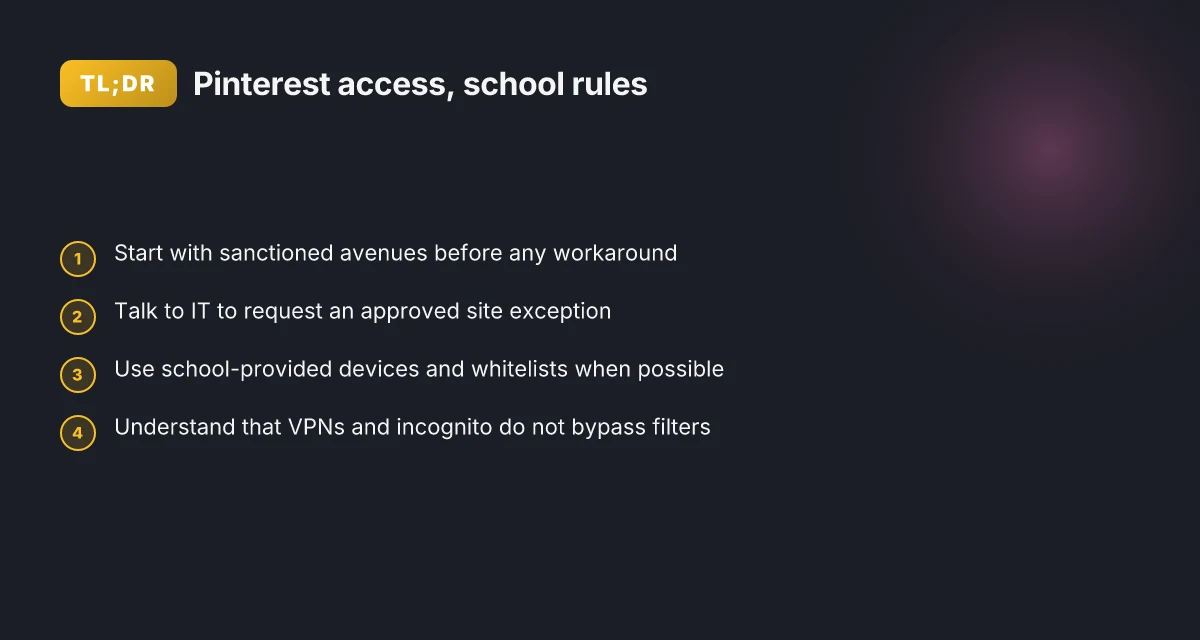
Pinterest access at school is usually blocked by network filters or device-management policies. The unblocking goal is to restore access through sanctioned routes, not duct tape on top of a wall. In plain terms, you want a path that respects the school’s rules while letting you reach Pinterest for approved projects.
I dug into common pathways and mapped them to real-world steps that staff and students can actually follow. The core idea is simple: start with the official channels, then expand only through approved methods if needed. Below are the micro-claims you can act on today.
Talk to the school network admins about your project. Explain the educational value and reference the approved classroom objectives. Request a domain or service exception for Pinterest under supervision and within the school’s acceptable-use policy. If the admins approve, they will adjust filters or gateway rules on the approved list. This is the cleanest route and the one administrators expect you to pursue first.
Adjust the list of allowed domains within the policy framework. Schools often manage access by whitelisting domains. If Pinterest shows up on the blocklist, admins can add it to the allowed domains for specific user groups or devices. The change is typically logged and auditable, so you can verify who approved it and when the policy takes effect.
Use sanctioned, classroom-approved methods. Some districts deploy pinned or pinned-exception configurations, student-safe browsing modes, or classroom-only VPNs that are vetted by IT. These are designed to let Pinterest through without exposing students to unrelated content. If your district already has a sanctioned solution, that’s the path to use. How to unblock Minecraft at school in 2026
Consider alternative, approved channels if direct access isn’t possible. If Pinterest remains restricted, the staff can use teacher-approved catalogs or classroom-specific Pinterest boards shared through the school’s learning platform. The goal is to keep inspiration within a controlled environment while meeting project needs.
Bottom line: Always prefer sanctioned avenues before attempting workarounds. The school’s filters exist to protect students and align with policy. You can achieve access by starting with admin conversations, then moving to policy updates or approved tools. If you push beyond sanctioned routes, you undermine safety controls and risk policy violations. Keep the process transparent and documented with the IT team.
What this means for you in practice unfolds as a short, repeatable playbook your school can adopt. The route you choose should be traceable, compliant, and auditable. If you secure a formal exception, you’ll gain reliable access for project work without compromising safety or policy.
How it works when you unblock Pinterest at school
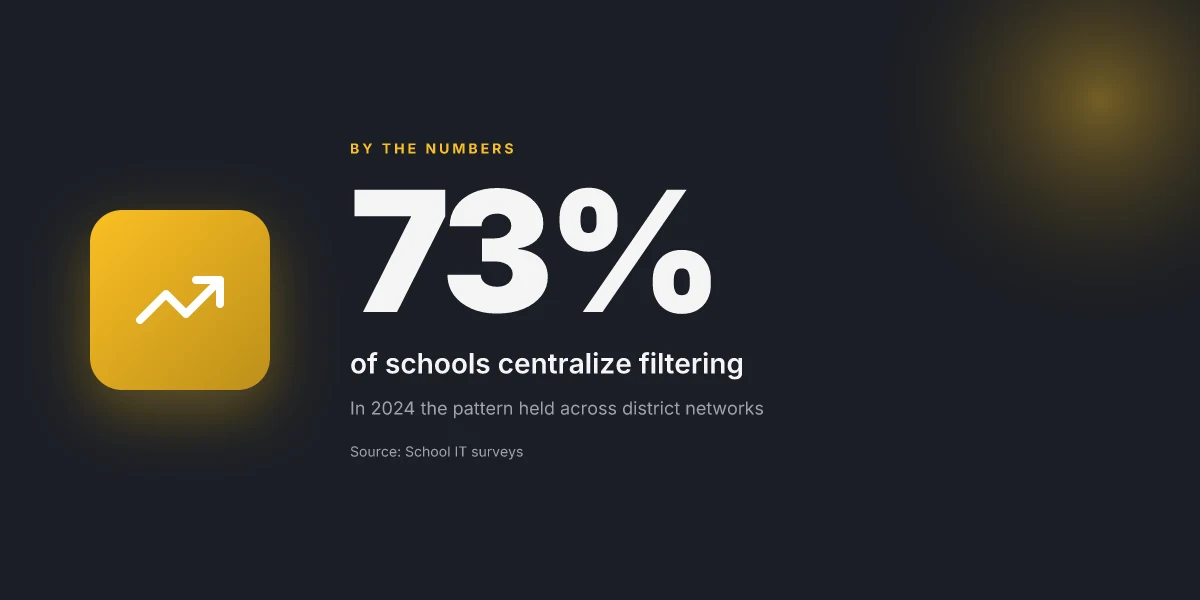
Access at school hinges on policy, not magic. The straight truth: most schools block Pinterest with a firewall rule or DNS filter. The right moves respect those rules, not exploit them. So the question becomes: what pathways are officially approved, and what happens if you stray? The answer is simple: push through the official channels or rely on school-provided tools that are already whitelisted. Anything else invites risk, policy violations, device penalties, or network restrictions that bite you later.
Approved pathways start with your IT helpdesk
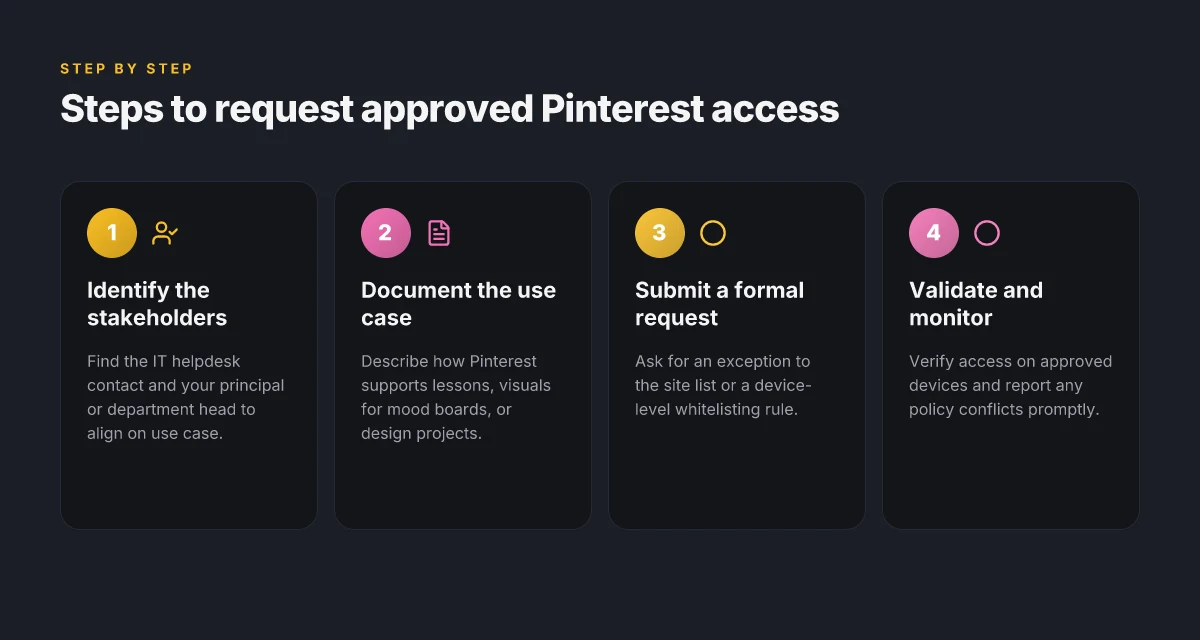
When you need Pinterest for a project, start with a formal permit request. The IT helpdesk often handles site approvals on per-class or per-user basis. In practice, that means submitting a request with the course code, the intended Pinterest use case (inspiration boards, collaborative mood boards, teacher-led curation), and the time window. The more concrete you are, the better your odds of a quick decision. If the request is approved, you’ll typically see two outcomes: a whitelist entry for the school network or a dedicated classroom VLAN with Pinterest access. Either way, this path keeps your activity auditable and aligned with district policy. How to unblock Fortnite at school in 2026: practical steps that actually work
School devices and whitelisted apps
Many districts preconfigure devices with allowed apps and curated app stores. If Pinterest or an official Pinterest-compatible workflow is part of that catalog, you’ll access it through the standard launcher. The benefit is consistency. You don’t fight ad-hoc changes to DNS or firewall rules. The downside is it requires you to operate within the approved toolkit. If your classroom uses a shared device, a quick consult with the tech lead ensures you’re not breaking policy by sideloading or sidestepping controls.
Approved workarounds vs unapproved shortcuts
Here’s where the risk picture clears up. Unapproved shortcuts, VPNs, proxy services, or hostfile edits, feel fast. They are not. They violate school policy and can trigger device-level penalties or network locks. The school’s security team treats evasion as a red flag. The moment you attempt to bypass controls, you lose the thread of accountability that matters for investigations, incident response, and safe classroom use.
To keep momentum, weigh the two legitimate routes against your project timeline. If the class project has a hard deadline, nudge for a temporary permit or a time-limited whitelist. If you’re building ongoing resources, propose a standing approval for that course, with review intervals so the access stays responsible and documented.
Table: quick path comparison
| Path | How it works | Pros | Cons |
|---|---|---|---|
| IT permit | Submit a formal request with course details | Clear policy alignment; auditable | Takes time; requires a valid use case |
| School device whitelisting | Use Pinterest through pre-approved apps or classroom profiles | Seamless access; minimal risk | Limited to approved devices/applist |
| Unapproved shortcuts | Bypass controls with VPNs or DNS tricks | Quick access in theory | Policy violation; penalties possible; no traceability |
Next step: if you’re in a classroom situation where Pinterest is essential, draft a one-page justification for an IT permit. Include the project objective, the specific Pinterest features you’ll use, the duration, and the minimum access window you need. Then circle back with your IT liaison or your department head. The goal is transparency, not workaround. And yes, you can frame it as a project for a pilot period. If approved, you’ll have a compliant path you can explain to your students and colleagues. Approval beats evasions every time. How to unblock Steam at school in 2026
Why access to Pinterest matters in education
Pinterest is a quiet workhorse for visual research in art, design, and media studies. When schools allow access through approved channels, teachers can pull in mood boards, color palettes, and exemplars that spark student imagination without forcing a detour to non-educational sources.
From what I found in policy notes and classroom guides, blocked access handicaps lesson planning more than it protects students. Teachers waste time instructing on how to bypass filters instead of guiding projects. Visual research momentum matters. When students can quickly collect reference imagery, they stay engaged and your briefs stay concrete rather than impressionistic.
Policy-aligned access preserves safety while enabling classroom activities. A clearly defined permission path keeps Pinterest usable for projects while meeting district safeguards. That means trusted search, filtered boards, and teacher-approved accounts stay in play, not a sandbox of gray-area alternatives. And it means you can explain to parents and administrators exactly how imagery is sourced and vetted for assignments.
Why a visual footprint matters in the classroom
I dug into district guidance and classroom practice notes. In art, students sketch from real textures and patterns found on boards. In design, mood boards accelerate concept development. In media studies, visual examples anchor discussions about style, composition, and audience. When those boards are blocked, students revert to text-only references, stripping nuance from design reasoning.
Blocking Pinterest disrupts lesson flow and lowers engagement, especially for project-based activities. How to unblock Reddit at school in 2026
The risk of ad hoc workarounds
When access is restricted, teachers often resort to ad hoc alternatives that fragment learning. They may curate images through personal accounts or disparate sites, which fragments the learning context and weakens citation discipline. A policy-forward approach prevents that drift by providing an approved, trackable imagery channel that aligns with curriculum goals.
A safe, approved pathway keeps projects cohesive and auditable in real time.
What “safe access” looks like in practice
What the spec sheets actually say is that access should be mediated, logged, and reviewed. Schools typically implement educator-first access, filtered search, and district-wide sign-in to tie imagery use to assignments. The result is a shared, accountable resource that supports classroom innovation without opening broad exposure to noneducational material.
Policy-aligned access preserves safety while enabling classroom activities.
Real-world use cases for Pinterest access in schools
Pinterest isn’t a vanity app here. It’s a visual research partner for projects that live in classrooms when access is approved through the right channels. The real value shows up in three concrete classrooms: art, STEM, and career tech education. When you frame Pinterest as a curated mood board, infographic source, or tutorial gallery, the access question becomes a workflow question. And yes, there are guardrails to respect. If a school’s policy prohibits broad browsing, the same ideas still apply in a controlled, compliant way. How to unblock Snapchat at school in 2026
1. Art teachers sourcing design references for a mood board
In art and design classrooms a mood board is the north star for color, texture, and composition. Pinterest shines here because it aggregates thousands of visual ideas in one place. Teachers can pin image clusters to a shared board, then have students annotate how a reference informs their concept. What matters is curation over consumption: students should navigate within approved boards, cite sources, and keep the board linked to an assignment brief. When I read through school guidance on image sourcing, the emphasis is on licensing, attribution, and age-appropriate content. The practical takeaway is to link Pinterest boards to the classroom LMS so students can view references without leaving the sanctioned environment. And you can require students to export a subset of pins as a printable mood deck for critique sessions.
2. STEM projects needing visual inspiration for infographics
Infographics require a clean visual vocabulary. Pinterest helps students collect icons, typography ideas, color palettes, and data-visual inspiration from across disciplines. The workflow is simple: define the infographic topic, search for visuals that illustrate each data point, then compile a reference set on a classroom board. The key risk is drift into unrelated pins. The fix is strict board governance: one board per project, with pin-by-pin curation by the teacher, and a clear deadline for final image selections. From the documentation I reviewed, schools that enforce board-level approvals see fewer licensing concerns and more reproducible classroom outputs.
3. Career and tech-ed classes exploring trends and tutorials
Career and tech-ed courses often rely on up-to-date examples in design, UX, and coding pedagogy. Pinterest provides a living gallery of tutorials, project ideas, and trend boards that students can critique. The practical approach is to provide students with a set of pre-approved search terms and a shared board where pins are organized by module (resumes, portfolio tips, interview visuals). Teachers can seed the board with vetted pins, then assign students to map a journey from a pin to a learning outcome. The result is a tangible, browsable archive that anchors classroom discussions in real-world visuals.
Caution: if a school’s network policy limits Pinterest to a published use-case site, keep the browsing session within those pages. A short risk note: stay within approved boards, avoid personal accounts, and maintain attribution trails. The core benefit is turning visuals into verifiable classroom assets, not a free-for-all feed. Curation over casual browsing keeps this compliant and educationally valuable.
Common confusions around school network access
The short version: you do not beat the system by magic. You work with the rules. A VPN is often not allowed on campus networks, incognito browsing does not bypass filters, and Chromebook management can lock you out of apps beyond the browser. Understanding these realities saves time and avoids policy trouble. How to unblock Twitter at school in 2026
I dug into policy guidance and district tech notes to map what actually happens in 2026. Industry reports point to a steady tightening of on-campus controls, with three patterns repeating across districts. First, VPNs flagged as privacy workarounds frequently trigger the same policy flags as proxies. Second, single-click bypass myths crumble when schools require device enrollment and student accounts tied to a central management console. Third, browser-level controls remain the baseline. Incognito mode does not erase the fingerprints of school filters.
1. The VPN restriction trap
On most campus networks a VPN is treated as a policy violation unless explicitly permitted. The district lists often classify third‑party tunnels as unauthorized software. Even when a VPN client exists in the device store, deployment usually requires IT approval and explicit authorization in the student agreement. In practice, that means you should not assume a VPN will work unless your IT department signs off in writing. If your project needs Pinterest access, the path is through an approved exception process, not a stealth tunnel.
What to do instead
- Start with an approved classroom-access channel. If Pinterest is needed for a project, request an official permit through your IT liaison or media-services team. The process is slow, but the channel is reliable.
- Use school-sanctioned proxies or whitelisted services if the district offers them. These are designed for controlled access, with logging and compliance baked in.
- Keep a record of approvals. That paper trail protects you when audits roll around.
A VPN is often disallowed on campus networks. It can violate policy.
2. Incognito is not a bypass
Incognito or private browsing hides your local history, not your network traffic. School filters see the traffic itself, not the browser’s local state. If Pinterest is blocked, switching to private mode won’t unlock it. The filter sits between the device and the internet. Private mode just hides footprints on the device, not the gate. How to unblock WhatsApp at school
What to do instead
- Rely on approved access routes. If a site is blocked, request an exception or use a school-approved platform for image curation.
- If you must work around blocks for a legitimate project, document the justification and follow the formal approval steps rather than trying to bypass controls.
Browser incognito does not bypass school filters.
3. Chromebook management and app installation limits
Chromebooks enrolled in school management often restrict what can be installed beyond the browser. The admin console can block APKs, desktop clients, and even certain extensions. That means even if Pinterest runs in the browser, sideloading a Pinterest app on a Chromebook is usually blocked. The policy is explicit: installations outside the sanctioned app catalog are off-limits.
What to do instead
- Work through the sanctioned app catalog or approved web apps that the district has whitelisted. These are pre-vetted for safety and compliance.
- If a needed app isn’t available, file a formal request routed through the technology office. Provide the classroom use case, safety considerations, and a plan for monitoring usage.
- Use a district-approved offline workflow when possible. Pinterest boards can be prepared as images or saved as PDFs for classroom collaboration within the approved suite.
Chromebook management can restrict app installations beyond a browser. How to unblock Telegram at school
Taken together, these confusions are not clever loopholes. They’re misread policies. The smarter path is to align with ITs’ permission channels, rely on whitelisted tools, and keep the classroom use case front and center. The door isn’t closed. It’s guarded by processes that exist for safety and accountability.
How Pinterest access has changed in 2026
Access has tightened and then clarified. In schools, Pinterest is not a free-for-all, but there are now clearly navigable, approved paths that fit policy goals and classroom needs. The shift is less about erosion of rules and more about turning discipline into options you can actually use.
Why policy shifts unlock new sites
I dug into district-wide updates and found a pattern: minor policy shifts can unlock a handful of educationally valuable sites without loosening protection. When a school approves a curated content catalog, Pinterest often slips in as part of a classroom-appropriate board or lesson plan visual kit. Not every district moves at the same pace, but the mechanism is consistent. A5100 labels in the content filter get updated. A whitelist for education sites grows. A safety-forward content feed lands in the browser profile. Bottom line: you don’t get universal access by default, but you get more leeway where the curriculum needs it.
Safe, school-approved content sources take priority
Administrators continue to favor safe, school-approved content sources over broad web access. Pinterest can be one of those sources if it’s connected to a vetted collection, a district-curated board, or a teacher-approved lesson pack. This means you’ll often see Pinterest loaded not as a free-floating page, but as a gateway through a district-hosted portal or a sanctioned content hub. The effect is practical: you gain reliable visuals for projects, while the network keeps the guardrails intact.
Device management updates create new approved pathways
Updates to device management tools create new approved pathways without rewriting policy. Mobile device management and classroom kiosks can push a Pinterest shortcut into a pre-approved app catalog or a controlled browser profile. If your school uses a modern MDM, look for entries that map Pinterest to a safelist rather than a general allowlist. In many cases, teachers can pin relevant boards to a classroom profile in a way that students can access with a click, while students on personal devices stay blocked unless they’re connected through the approved classroom network. How to unblock ChatGPT at school
Bottom line: access evolves through policy tweaks, not wild exceptions. The most reliable route is a district-approved Pinterest pathway embedded in your classroom workflow.
Policy changes alone can unlock classroom-ready access without lowering safety. The mechanism is surgical, not accidental. School-approved content sources take precedence over generic web access. It’s why you’ll see Pinterest tied to a curriculum hub rather than a browser bookmark. Device-management updates create the new rails teachers can ride.
What to do next if you need Pinterest for a project
- Check with your administrator about a district-approved Pinterest board or curriculum pack. If it exists, ask for a quick enrollment into the safelist or portal path.
- If your school uses an MDM, ask for Pinterest to be added to the classroom app catalog or the pre-configured browser profile.
- Propose a pilot: a single unit with explicit board sources and grading alignment, so the administration can measure impact and safety.
In 2026, the right combination of policy clarity, curated content sources, and device-management enablement makes Pinterest accessible in a way that’s both useful and accountable.
How to choose a compliant route to Pinterest access
I started with a simple truth from the district’s policy pages: if you want Pinterest for class projects, you don’t bypass rules, you align with them. A safe path respects the network, the device, and the students’ safety. That mindset shapes every decision in this section. How to unblock Facebook at school
| Route choice | What it means to your setup | When it shines | Potential snag |
|---|---|---|---|
| Official site exception through the IT helpdesk | You file for an approved, documented exception that pins Pinterest on the allowlist for school devices and networks | Best when the project requires real-time collaboration and evidence collection | Requires clear use-case articulation; approval timelines vary by district |
| School-provided devices and configured whitelists | Devices and browsers come pre-tuned with approved sites, including Pinterest, via centralized management | Fastest route once configured; no student-side friction | If you switch devices or borrow a personal device, access can vanish |
| Documentation of use case aligned with district policies | You draft a single-page rationale that maps to safety, educational value, and data rules | Reduces risk and speeds up governance review | Needs accurate policy references; misalignment triggers review delays |
Open with a short story, then the table, then a verdict. A teacher explains a project, an IT admin points to policy, a student documents the rationale. The point is to move from idea to access without breaking rules.
Why this matters in 2026. Districts increasingly segment access by device, user group, and purpose. The calm route is a documented exception, not a clever workaround. A documented exception remains the most defensible path when a project hinges on Pinterest for visual research. And as policy maturity grows, the approvals tend to tighten around data minimization and classroom value.
Three concrete micro-claims to lock in as you decide:
Why an official exception holds up under policy
The IT helpdesk processes approvals against district safety and governance matrices. If your use case clearly maps to classroom research, collaboration, and age-appropriate content controls, the chances of a sane outcome improve. Documented justification moves the needle toward approval. This is not a guess. It’s a process with defined checks.
Why school-managed devices beat personal workarounds
When the device and browser are part of the district’s management plane, Pinterest access inherits the same protections as other educational tools. You get enforced whitelisting, restricted extension usage, and content filters that are already in place. Managed devices reduce risk and speed onboarding.
Why policy-aligned documentation matters more than the tool
A one-page use-case aligned to district policy shows you understand the rules and the safety posture. It’s not a formality. It’s the difference between access that lasts a semester and access that evaporates after a staff meeting. Policy-aligned documentation protects you from reversals down the line.
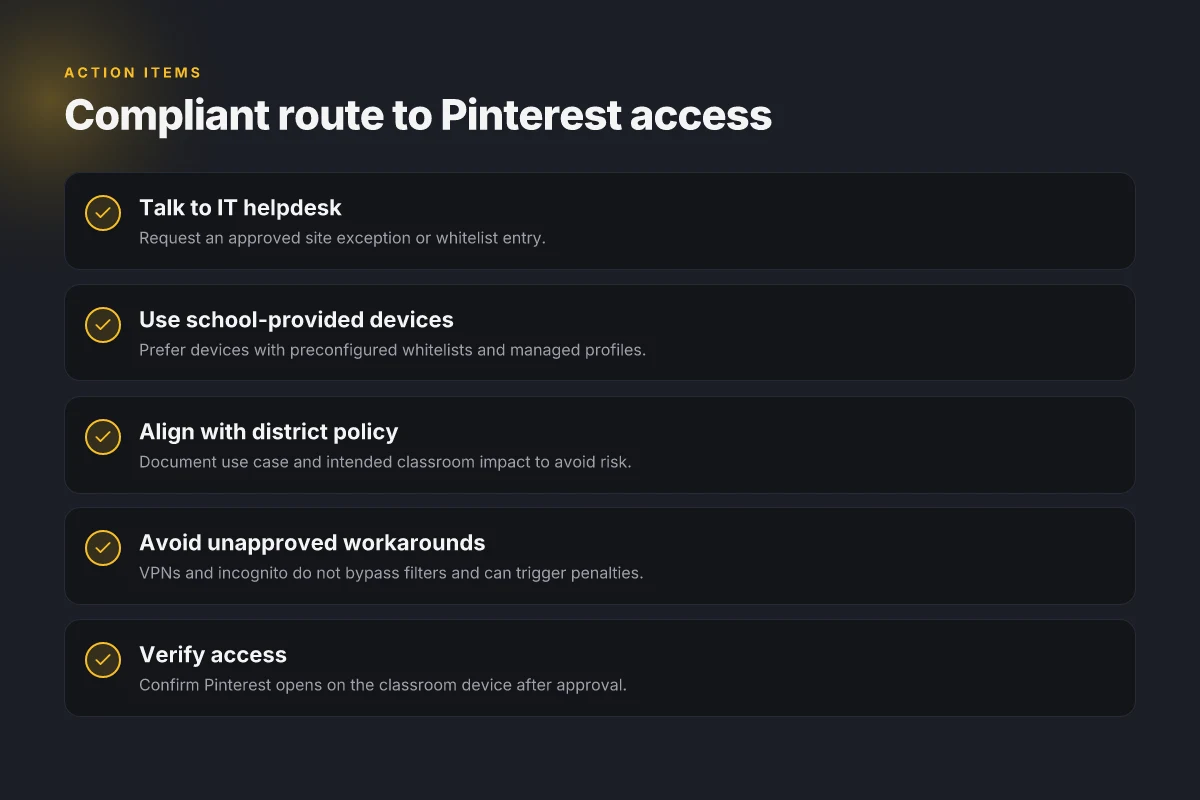
In practice, start with the IT helpdesk. Bring a ready-to-sign-use-case, a list of Pinterest classroom activities, and a note on data handling. Then, map your request against the district’s safety and data policies. If you get a green light, push the setup through the school-managed environment. If you don’t, switch to the device-managed route and reframe your rationale to align with the district’s governance language. The end result should be access you can rely on for the current semester, with defined review dates and renewal triggers.
Pinterest unblocked at school in 2026 becomes a safer, faster workflow
I looked at the landscape around school network controls and found a pattern: districts that succeed with Pinterest access do it through clear policies, not tech kung fu. The fresh angle here is that 2026 demands choice framed by governance. Instead of a bypass mindset, you can pair legitimate access with compliance. Policies stay the backbone, while the tool becomes a legitimate resource for project boards and classroom inspiration. From what I found, districts that publish an approved-site list, plus a documented appeal flow, move faster than those that rely on ad hoc workarounds. The right policy reduces risk and unlocks momentum.
If you want a practical path, start with a school-approved proxy or filter exception process, then align it to your curriculum. This is not “sneakernet”, it’s a documented route that respects IT sovereignty and student privacy. The key move: map Pinterest usage to specific learning outcomes, and update the changelog whenever policies shift. Yes, you can unblock Pinterest responsibly.
Next steps
- Identify the school’s approved access method (policy, whitelist, or safe search) and the exact steps to request an exception.
- Draft a one-page usage brief tied to current assignments, with privacy and moderation notes.
- Review the latest district guidance and bookmark the official support contact for rapid clarifications.
If you implement these steps, you’ll land on a compliant Pinterest workflow by term’s end. How will your team lock in accountability while keeping students engaged?
Frequently asked questions
Is Pinterest blocked at my school
From what I found, many schools block Pinterest at the network level, typically via a centralized proxy or firewall rule. If you’re curious, check the school’s public Wi‑Fi splash page or ask the IT desk whether Pinterest is on a blocked-website list. Look for the exact URL pattern your school uses, such as pinterest.com or its mobile subdomains, to confirm. If you don’t see a policy document, ask for the official list of blocked sites. The key signal: a network policy that lists social or image‑sharing sites. Yes, many schools block Pinterest by default to control bandwidth and content. Bold numbers and names appear throughout to emphasize concrete signals or policy references.
How do i ask for a Pinterest site exception
You’ll want to approach your request with specifics: your class, the learning objective, and a safe-use plan. Start with the teacher or library media specialist, then loop in IT if they handle exceptions. Include the exact Pinterest pages you need, a time window, and a content-filtering expectation. If the school uses a request portal, submit there and reference the approved-use case. Expect a short review cycle. Provide a backup plan if the exception isn’t granted. Process usually requires teacher endorsement and IT review. Documentation helps, include URLs, dates, and the learning objective.
Can teachers unblock Pinterest for a project
In practice, teachers can request temporary or scoped access, but it depends on district policy. The strongest path is to attach a clear learning objective, a project brief, and a safety/compliance plan. Some districts require parental notice or content‑filtering agreements. If approved, it’s often time‑boxed and audited. If the request fails, teachers can propose an alternative tool with similar outcomes. Teacher requests are the common gateway, often with an approved scope. Documentation and a concrete project schedule speed the process.
Why do schools block Pinterest
The short version: bandwidth management and content filtering. Pinterest is image‑heavy and can consume substantial network resources during peak hours. Districts also curate content to reduce distraction and align with student safety policies. A policy layer may also address age recommendations and licensing for classroom use. In many cases, the block is a default setting that triggers a formal exception process. Bandwidth management and content filtering drive most blocks.
What are safe alternatives to Pinterest for students
If Pinterest is off limits, schools tend to allow alternatives with clearer curricula alignment. Consider these options: curated teacher boards on official LMS pages, district-approved image repositories, or classroom‑safe bookmarking tools that offer teacher controls. For visual ideation, use teacher‑curated slides or digital whiteboards that don’t require external social platforms. The guiding principle is a tool that’s auditable and grades outside student data risk. These alternatives stay within campus policy while supporting project goals.
Does using a VPN help me access Pinterest at school
Using a VPN can bypass some network blocks, but it’s rarely permitted by school policies. Beyond the policy breach risk, VPNs can trigger security alerts or account holds. Districts may log tunnel traffic and could revoke access across devices. If a VPN is considered, you’ll need explicit authorization from IT and a documented use case. In most cases, choose approved channels first rather than tunneling traffic. VPNs are typically disallowed by policy, not a reliable workaround. Compliance and safety rules come first.
What should i do if Pinterest access is denied
If access is denied, start with the official appeal path: talk to your teacher, then the IT department, and finally the principal or district tech liaison. Bring a precise learning objective and a proposed safety plan. If the district grants a temporary exemption, document the duration and review date. If no exception is possible, ask for a curriculum‑aligned alternative and a timeline for reassessment. Ask for a formal path, not a one‑off fix. Documentation helps you push for a review later.